Background pattern

Generate digital New Hampshire Engineer (PE) stamps, Architect stamps, and Surveyor stamps instantly

  • STATE BOARD COMPLIANT
  • HIGH-QUALITY FILES IN VARIOUS FORMATS
  • INSTANT ACCESS
  • FREE-OF-CHARGE REVISIONS
Text Size
Text Size
Text Size

Your board-compliant seal will be ready for download after purchase

New Hampshire PE Stamp Requirements

Regulatory Information

Authority: New Hampshire Joint Board of Licensure and Certification

Code Reference: New Hampshire Administrative Rules, Eng 501

Seal Requirements

  • Must include licensee's name and license number
  • Must contain the words 'Professional Engineer' or 'P.E.'
  • Must display 'State of New Hampshire'
  • Electronic or digital seals are permitted
  • Seal must be between 1¼ to 2 inches in diameter
  • Documents must be signed and dated

Board Website: https://www.oplc.nh.gov/board-professional-engineers

All formats included

 format preview

HIGH-QUALITY RASTER FORMAT

 format preview

VECTOR FORMAT, INFINITELY SCALABLE

 format preview

UNIVERSAL DOCUMENT FORMAT

 format preview

AUTOCAD COMPATIBLE FORMAT

 format preview

PROFESSIONAL PRINT FORMAT

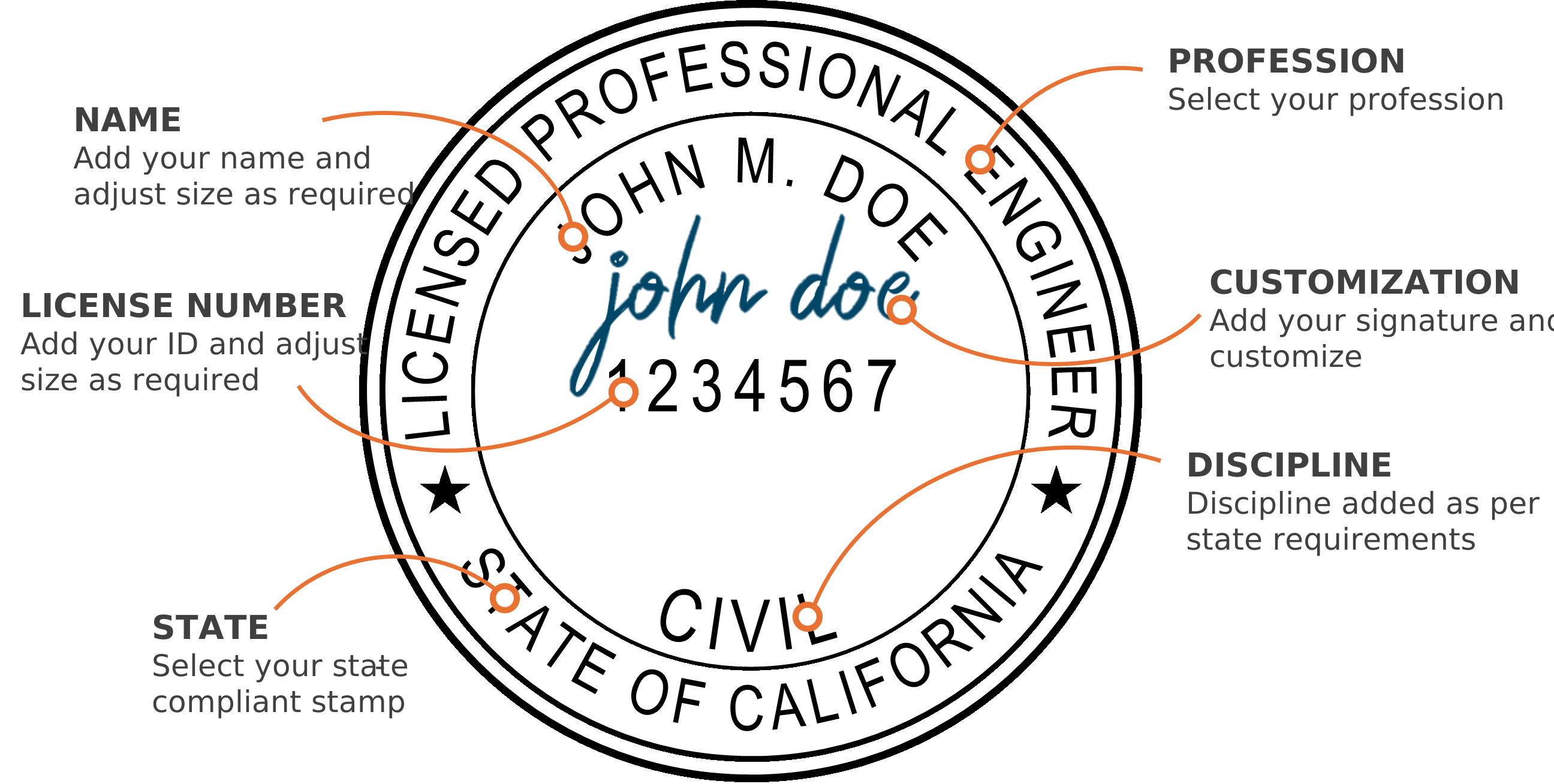
Create your New Hampshire digital PE stamp

1

Select your state & profession

2

Add your name & license number

3

Adjust the text size using the controls

4

Select your discipline

5

Add your signature & customize (optional)

6

Download instantly to your computer

Electronic PE Stamp

Compatible with PDF and CAD software

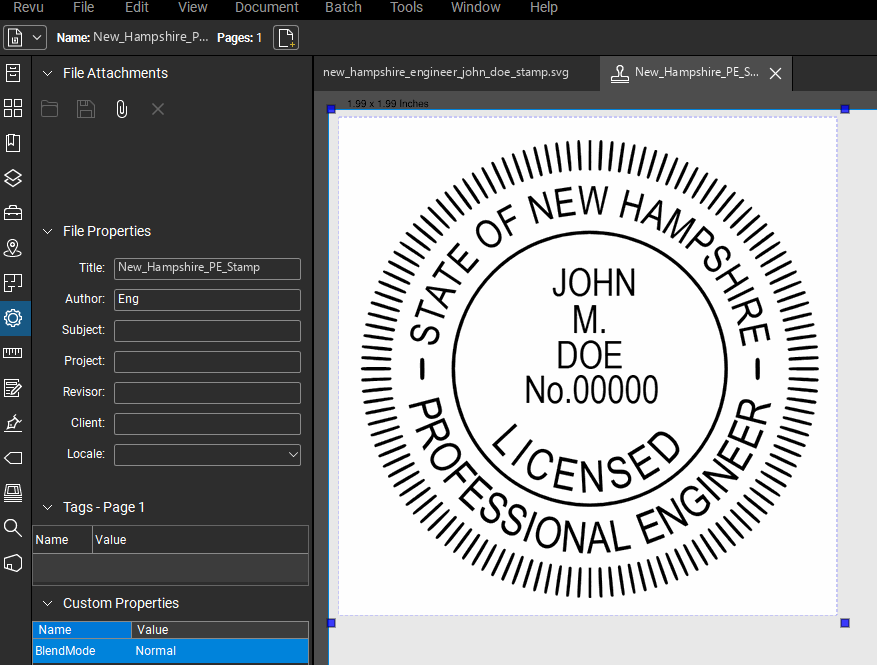
Bluebeam
Adobe Acrobat
Bluebeam Stamp Example
Click to expand
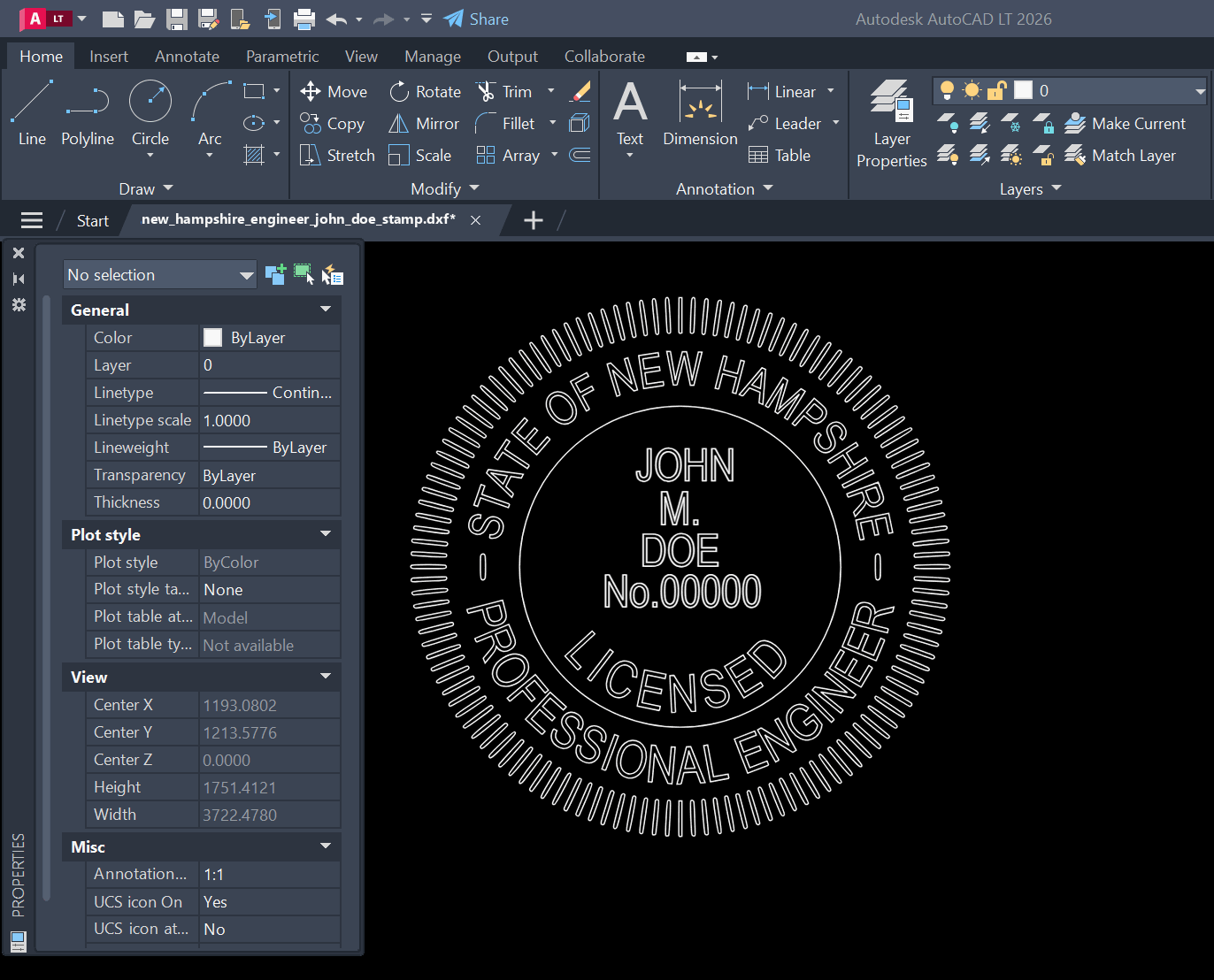
AutoCAD
Autodesk Revit
AutoCAD Stamp Example
Click to expand

About

Our digital New Hampshire PE stamp generator creates instant state-approved electronic professional engineer and architect stamps. Our platform provides full customization of your digital seal, including an option to add your signature. Professional Engineer (PE) stamps, Architect stamps, and Land Surveyor stamps are available for immediate download after customization. There is no waiting. Every electronic professional seal we generate is 100% compliant with state board requirements, ensuring your digital stamp meets all necessary standards.

State board-approved, including

Florida PE Stamp logo
Texas PE Stamp logo
California PE Stamp logo
Georgia PE Stamp logo
New York PE Stamp logo
Pennsylvania PE Stamp logo

New Hampshire Seal FAQs

Frequently asked questions about our New Hampshire digital professional engineer, architect and surveyor stamps and seals.

How do I obtain a digital New Hampshire professional engineer (PE), architect or surveyor seal or stamp?

Upon licensure in New Hampshire, you can use our stamp generator to instantly receive your seal or stamp. Simply fill out the form, customize, add your signature if desired, and download instantly on your computer – no waiting. All our stamps are generated in accordance with New Hampshire state-board requirements as specified in New Hampshire Administrative Rules, Eng 400. We know your privacy is important, so no data leaves your computer during the stamp generation process.

What are the requirements for the New Hampshire PE Stamp or seal?

According to the New Hampshire Board of Professional Engineers, the New Hampshire PE stamp must meet the following requirements as specified in New Hampshire Administrative Rules, Eng 400:

  • Must include licensee's name and license number
  • Must contain the words 'Professional Engineer' or 'P.E.'
  • Must display 'State of New Hampshire'
  • Electronic or digital seals are permitted
  • Seal must be minimum 1¼ inches, maximum 2 inches in diameter
  • Documents must be signed and dated
  • Rubber stamp impression of the seal is acceptable

Our stamp generator automatically creates stamps that meet all New Hampshire board requirements. For more information, visit the official board website: https://www.oplc.nh.gov/board-professional-engineers

What are the requirements for the New Hampshire Architect Stamp or seal?

According to the New Hampshire Board of Professional Engineers, the New Hampshire Architect stamp must meet the following requirements:

  • Must include registrant's name and license number
  • Must contain the words 'Licensed Architect'
  • Must display 'State of New Hampshire'
  • Documents must be signed and dated

Our stamp generator automatically creates stamps that meet all New Hampshire board requirements. For more information, visit the official board website: https://www.oplc.nh.gov/board-professional-engineers

How do I sign my New Hampshire PE, Architect, and surveyor seal or stamp?

In New Hampshire, according to New Hampshire Administrative Rules, Eng 400, license holders must sign and date their documents. The signature should not obscure the license holder's name and license number. When applying your signature to your digital stamp, ensure the signature is clearly visible and legible. Our stamp generator allows you to position your signature optimally on your stamp.

How to add PE and Architect seal or stamps in Bluebeam Revu?

After downloading your stamp from our generator:

  1. Open the provided PDF version of your stamp in Bluebeam
  2. Go to Tools → Stamp → Create Stamp
  3. Enter the following information in the Create Stamp dialog box:
    • Subject: [Your Initials]_Seal
    • Template: Blank (none)
    • Width: 1.5
    • Height: 1.5
    • Blend Mode: Multiply
  4. Click and drag from the top left corner of your seal to the bottom right
  5. Save and close the file
How to add PE and Architect seal or stamps in Adobe Acrobat?

Adding your professional stamp to Adobe Acrobat is simple:

  1. Download your digital stamp from PEDigitalStamps.com in PDF format
  2. Open Adobe Acrobat DC
  3. Go to Tools → Stamps → Custom Stamps → Create
  4. Browse to and select your downloaded stamp PDF
  5. Choose a category (create a new one like "Professional Stamps" if desired)
  6. Name your stamp (e.g., "PE Stamp")
  7. Click OK to save

Your stamp is now available in the Stamps tool under your chosen category. To apply it:

  1. Open the document you want to stamp
  2. Select Tools → Stamps → Your Category
  3. Click on your stamp
  4. Position it on the document and click to place it